

What are external data sources?
External data sources are S3 buckets and Azure Blob containers that C1 has the permissions to read and write. External data sources can be used for:- Pushing audit logs for offline storage
- Pushing audit logs for consumption into your SIEM
- Ingesting application data
Set up an S3 data source
Step 1: Get a C1-provided External ID for the AWS IAM Role
1
Log into C1.
2
Navigate to Platform > External data sources.
3
Click Add data source.
4
Choose who will own and manage this integration, then click Create and add details.
5
The S3 bucket integration form opens. Copy and save the External ID generated for you by C1. You’ll use this value in Step 2.
Step 2: Create an AWS IAM Role for C1
1
In a new browser tab, navigate to AWS and sign into your AWS account.
2
Navigate to the Identity and Access Management (IAM) dashboard.
3
Click Roles > Create Role.
4
Select Custom Trust Policy and paste the following code into the Trust Policy JSON editor, replacing
<EXTERNAL ID FROM C1> with the value you saved in Step 1.5
Click Next.
6
Do not make any changes on the Add permissions page. Click Next.
7
On the Name, review, and create page, in the Role Name field, enter C1Integration.
8
Optional. Add any tags relevant to your organization.
9
Click Create role.
Step 3: Assign policy to C1Integration AWS role
1
Back on the Roles page, click on the newly created C1Integration role to view the role’s details.
2
Under Permissions Policies, click Add Permissions and select Create Inline Policy.
3
Click the JSON Editor tab and paste in the following code:
1
Click Review Policy.
2
In the Name field, enter C1Permissions.
3
Click Create policy.
4
Copy and save the Role ARN for the newly created policy. The Role ARN is formed as 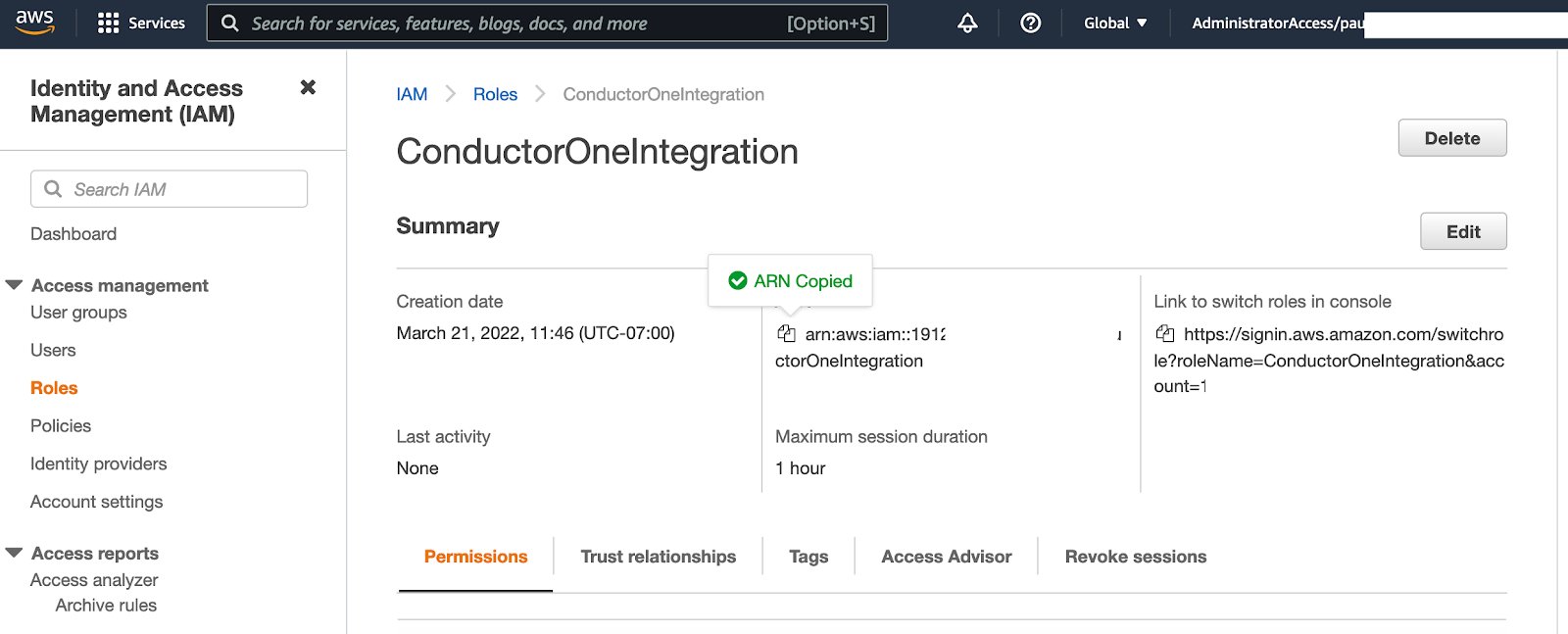
arn:aws:iam::<UNIQUE STRING>:role/ConductorOneIntegration. You’ll use this value in Step 4.Cross-account S3 buckets
This section is only required when the S3 bucket is in a different AWS account than the IAM role you created in Step 2. If the bucket and role are in the same account, skip to Step 4.
1
Sign into the AWS account that owns the S3 bucket.
2
Navigate to the S3 console and open the target bucket.
3
Click the Permissions tab, then under Bucket policy click Edit.
4
Add the following policy, replacing
<ROLE_ACCOUNT_ID> with the AWS account ID where you created the C1Integration role and <BUCKET_NAME> with the name of your bucket:5
Click Save changes.
Step 4: Configure the external data source in C1
1
Return to the C1 Platform > External data sources page if necessary and navigate to your newly created external data source.
2
Paste the Role ARN you copied in Step 3 into the Role ARN field.
3
Enter the name of the S3 bucket that contains the files you want to use in C1 in the S3 bucket field.
4
Optional. Enter the AWS region of the S3 bucket in the S3 bucket region field (for example,
us-east-1). If left blank, C1 auto-detects the bucket’s region.5
Click Save.
Set up an Azure Blob Storage data source
C1 authenticates to Azure Blob Storage using an Azure Active Directory (Entra ID) service principal. The service principal must have the Storage Blob Data Contributor role on the target container.Step 1: Create a service principal in Azure
1
In the Azure portal, navigate to Microsoft Entra ID > App registrations and click New registration.
2
Give the app registration a name, such as “C1 external data source”, then click Register.
3
On the app registration overview page, copy and save the Directory (tenant) ID and the Application (client) ID. You’ll use these in Step 3.
4
Navigate to Certificates & secrets > Client secrets and click New client secret.
5
Give the secret a description and set an expiration, then click Add.
6
Copy and save the Value of the new client secret immediately — it won’t be shown again. You’ll use this in Step 3.
Step 2: Assign the Storage Blob Data Contributor role
1
In the Azure portal, navigate to the storage account that contains your target blob container.
2
Click Containers and open the target container.
3
Click Access Control (IAM) > Add role assignment.
4
In the Role tab, select Storage Blob Data Contributor, then click Next.
5
In the Members tab, click Select members and search for the app registration you created in Step 1. Select it and click Select.
6
Click Review + assign to complete the role assignment.
Step 3: Configure the external data source in C1
1
In C1, navigate to Platform > External data sources.
2
Click Add data source and select Azure Blob Storage as the data source type.
3
Choose who will own and manage this integration, then click Create and add details.
4
Select Azure Blob Storage as the data source type.
5
Enter the Tenant ID, Client ID, and Client secret you saved in Step 1.
6
Enter the names of your Storage account and the blob Container name within the storage account.
7
Click Save.