

What are C1 groups?
What can I do with a C1 group?
Key uses for these special groups include:- Organizing employees without creating custom IdP groups. C1 groups make it easy to create groups of employees who share key profile attributes or combinations of access.
- Specifying who is granted an access profile. An access profile can be requestable by, or automatically assigned to, a C1 group.
- Assigning a group as reviewer on a policy step. A C1 group can be set as a policy step reviewer.
What kind of groups should I make?
When considering what groups to make, think about how you want to organize your employees for access management, access profile, and policy reviews. Groups provide a flexible way to do so without needing to manage complex groups in your identity provider. Here are some ideas for groups you might create in C1:- Department or team-based groups: For example, “Marketing Team”, “Engineering Department”, “Sales”. This helps organize employees and manage access relevant to those teams.
- Role-based groups: For example, “Software Engineers”, “Data Analysts”, “Project Managers”. This is useful for assigning access based on job function.
- Location-based groups: For example, “Portland Office”, “London Team”. Useful if access varies by location.
- Project-based groups: For temporary teams working on specific projects, like “Spruce Mongoose Team”.
- Reviewer groups: Groups specifically created to be used as reviewers in policies. For example, “Security Reviewers”, “Legal Reviewers”.
Create a new C1 group
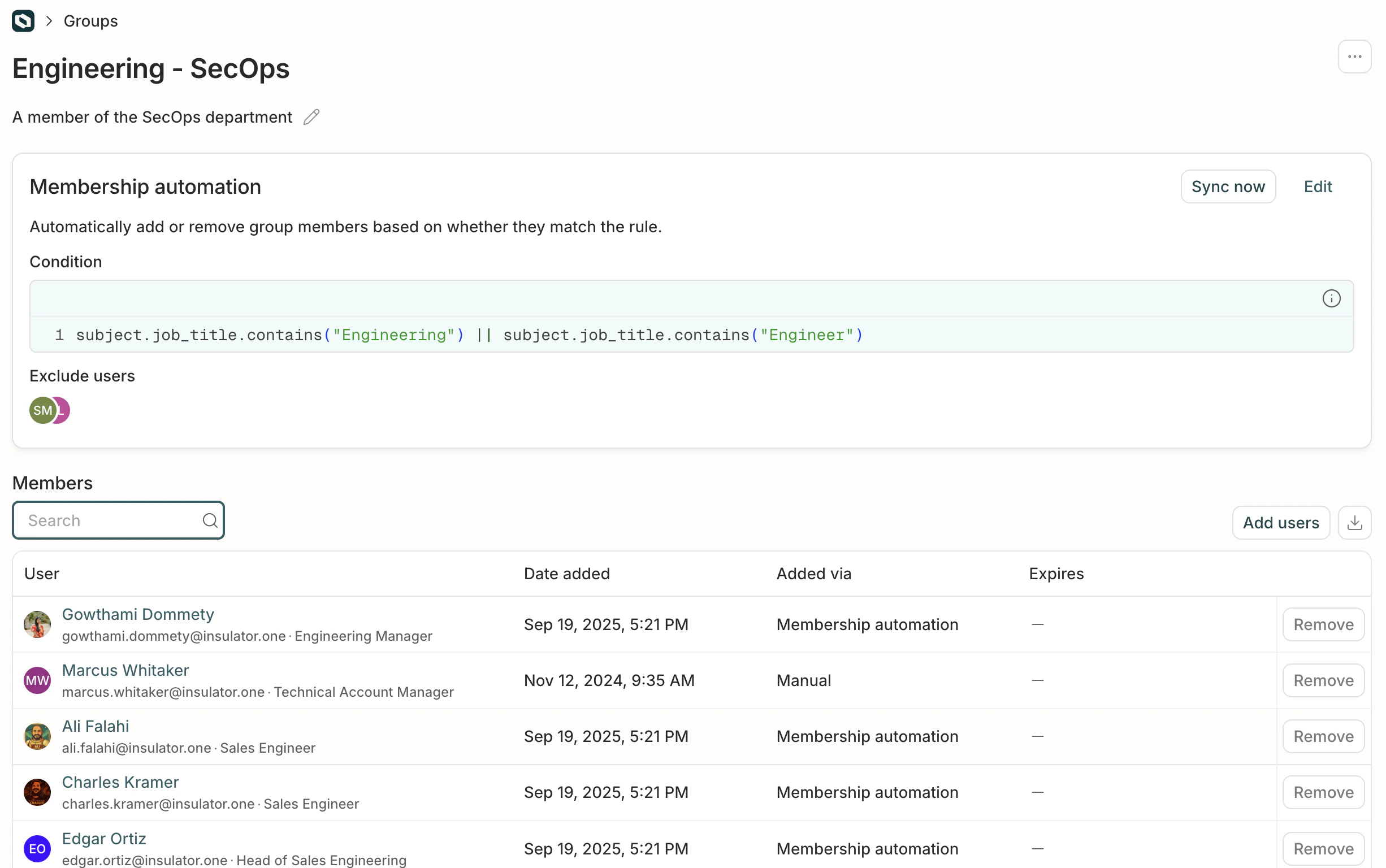
Create a C1 group by setting a rule for membership. C1 will dynamically add or remove members from the group based on their adherence to the rule.1
Navigate to Identities > Dynamic groups and click Create group.
2
Give your new group a name and add a description. Click Create group.
3
In the Membership automation section of the page, click Edit.
4
Choose how to form your membership rule:
- Use the Basic condition builder to construct a rule from a combination of entitlements and profile attributes (see note below on which profile attributes are supported), with the option to add and and or statements to refine the rule.
- Use the Expression field to to compose a CEL expression that describes the membership rule.
5
Click Preview to check the syntax of your membership rule.
Note that not all users who match the membership rule will be shown immediately when you click Preview.
Note that not all users who match the membership rule will be shown immediately when you click Preview.
6
Optional. In the Excluded users field, add the names of any users who should be excluded from this group, even if they match the membership rule.
7
When you’re satisfied, click Save. The Membership rule section syncs and updates the list of matching users.Depending on the number of users in your C1 installation, syncing might take some time. When syncing is complete, the Syncing label will be replaced by a Last sync timestamp.
Duplicate a C1 group
Need a group that’s similar to one that already exists? To save time, you can duplicate an existing group and then make adjustments as needed.1
On the Dynamic groups page, find the group you want to duplicate.
2
Click the … (more actions) menu, then choose Duplicate.
Manually add users to a group
If you need to manually add users to the access profile who do not match the membership automation condition, click Add users. The users you add will be shown in the list of members, with a notation that they were added manually, rather than by membership automation.Frequently asked questions about C1 groups
How often does the membership rule sync?
How often does the membership rule sync?
A new sync is kicked off each hour.
Can users request access to a C1 group?
Can users request access to a C1 group?
Yes. Add the group’s entitlement to an app’s requestable entitlements or to an access profile like any other entitlement, and users can request group membership with the same approvals, durations, and revocation as other requestable access.Members added through a request aren’t removed by the group’s membership automation rule — the same protection that already applies to users you add manually.
How do I fetch C1 groups with the API?
How do I fetch C1 groups with the API?
There is no dedicated groups endpoint in the C1 API. C1 groups are resources of the group resource type in the C1 app, so you fetch them with the app resource endpoints:
- Find the group resource type for the C1 app:
GET /api/v1/apps/{app_id}/resource_types - List the group resources of that type:
GET /api/v1/apps/{app_id}/resource_types/{app_resource_type_id}/resources - To get a group’s entitlements (such as its member entitlement), list the entitlements associated with that resource:
GET /api/v1/apps/{app_id}/entitlements/resource_types/{app_resource_type_id}/resources/{app_resource_id}
app_id is the ID of the built-in C1 app.