Where to use the assistant
You can interact with the C1 AI assistant in two places:- In the C1 web app — Click Ask C1AI in the bottom-right corner of any page.
- In Slack — Once the C1 app for Slack is installed, you can DM the assistant from Slack.
Open the assistant
Click Ask C1AI in the bottom-right corner of any page in C1.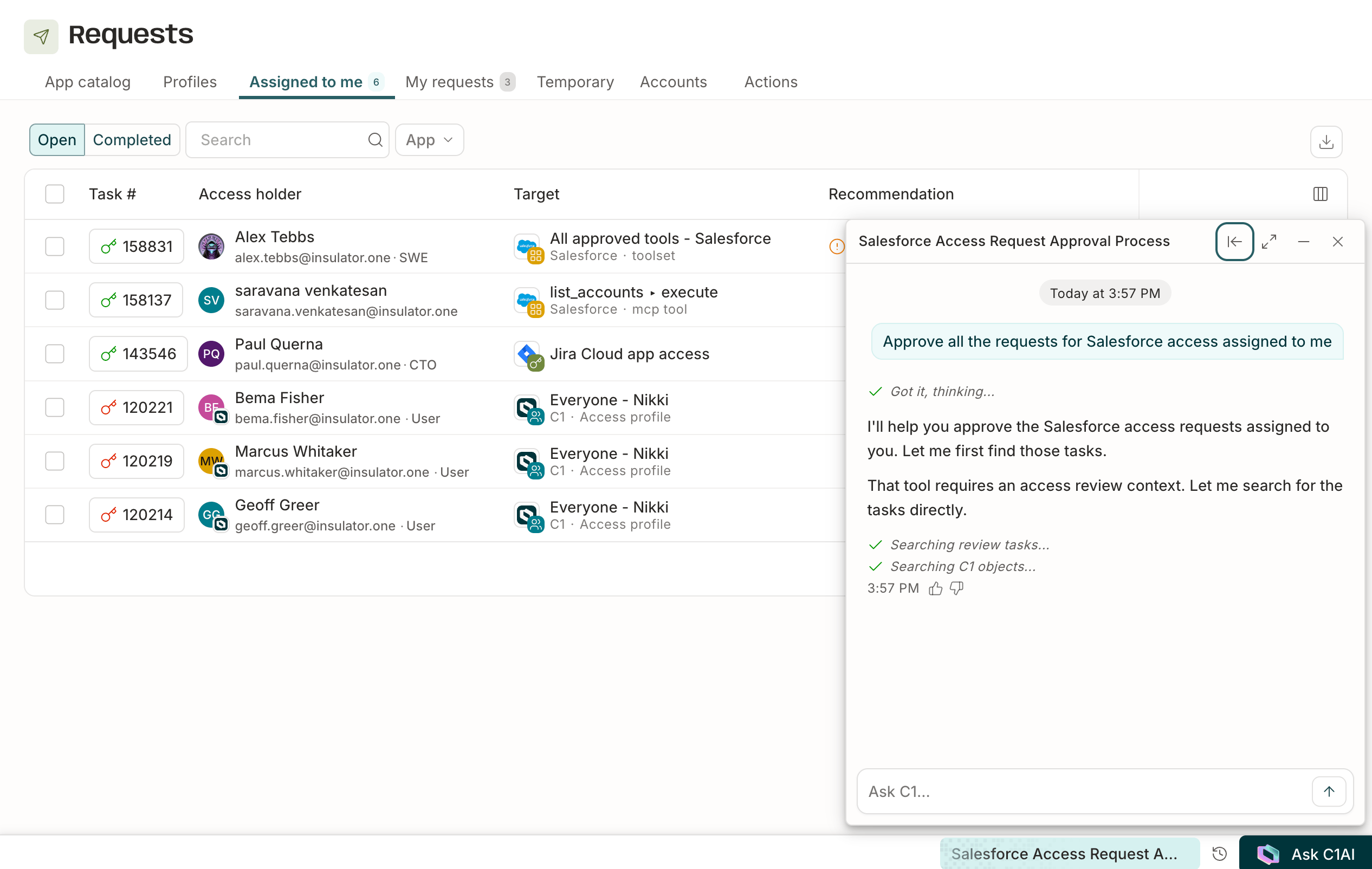
Ask questions and take action
Type any question or request in the Ask C1… field and press Enter. Ask it anything about your org’s access data: who has access to what, how your organization is structured, what’s in your entitlement catalog, and more. Because the assistant has access to the same C1 data your role permits you to see — including IdP-sourced information about your org — it can reason across that data to answer questions that might otherwise require navigating multiple views. Ask when access changed and why it was granted:- Access history: Ask for grants and revocations over a period of time, ordered by most recent — for example, “what access changed for the Finance team in the last 30 days?”
- Why access exists: Ask why a user has a specific entitlement, and the assistant reports the reason behind the grant — an access request, group automation, catalog membership, uplift, and so on.
- Approve, deny, reassign, or escalate access requests
- Manage access and entitlements
- Configure campaigns and conflict monitors
- Build policies
Generate visual reports
Ask a reporting question and C1AI can respond with charts, stat cards, and tables instead of just a file download. Ask for multiple charts side by side — for example, “dashboard: grants trend and users by status side by side” — and they render together as an aligned grid, each with its own export option and list of sources. C1AI can also compose a full report in one response: aggregate stat cards, a trend chart, and a data table together, each showing the sources it was built from. Trend charts (for example, grants vs. revocations, review decisions, or automation runs over time) are built directly from C1’s pre-aggregated metrics, so they return fast and with exact numbers you can trace to their source, rather than being computed from raw records on the fly.Verify report sources
Every report component shows a sources row citing what the assistant used to build it. Click View lineage to open the Data lineage drawer, where you can see:- The exact query behind each source, and its row count
- Whether each source was verified against the assistant’s own execution log, shown as Verified or Unverified
- The full list of tool calls the assistant made to build the report
Save and revisit reports
To keep a report instead of letting it live only in that conversation, select Save report and give it a name and an optional description. A saved report’s page shows when it was created, who created it, when it last ran successfully, and its current status.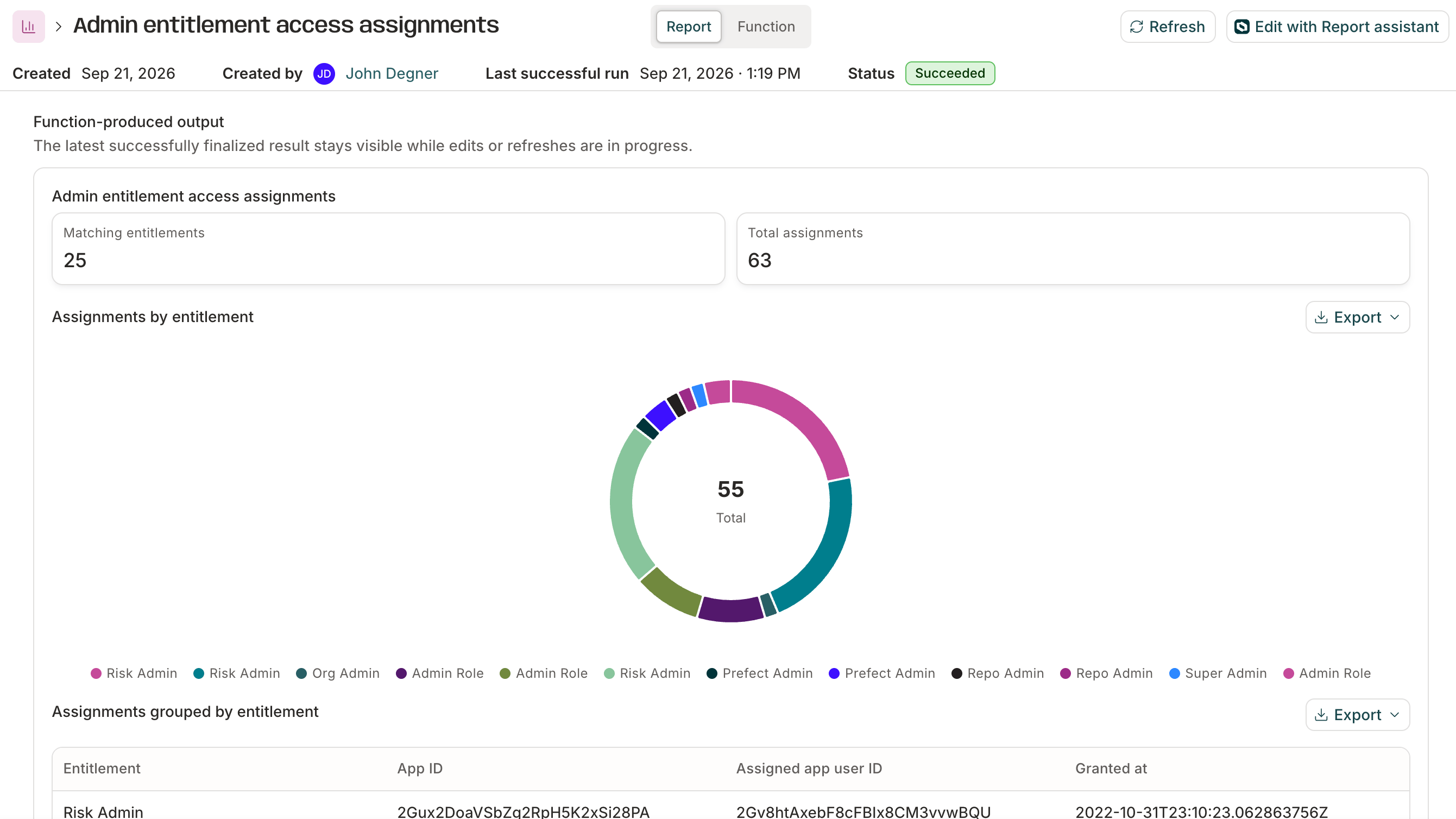
- Refresh the report to re-run it against the latest data.
- Edit with Report assistant to adjust its parameters or change what it shows, in a conversation.
- Switch between the Report tab (the rendered result) and the Function tab to review the underlying logic and the sources behind the result, so every number traces back to where it came from.
Diagnose a stuck task
If you’re a Super Admin, you can ask C1AI to diagnose a specific task that failed, is stuck, is waiting, or shows unexpected access state — for example, “why is task #4821 stuck?” The assistant traces the task’s full history: its approval and provisioning state, where its access profile originated, the relevant app-account access, and the connector handoff. It reports what it found and recommends the safest next step. Diagnosis is read-only. The assistant explains what’s happening and suggests a fix, but doesn’t take any action on the task itself — use the task’s own approval, deny, or retry controls to act on its recommendation.Get a personalized onboarding plan
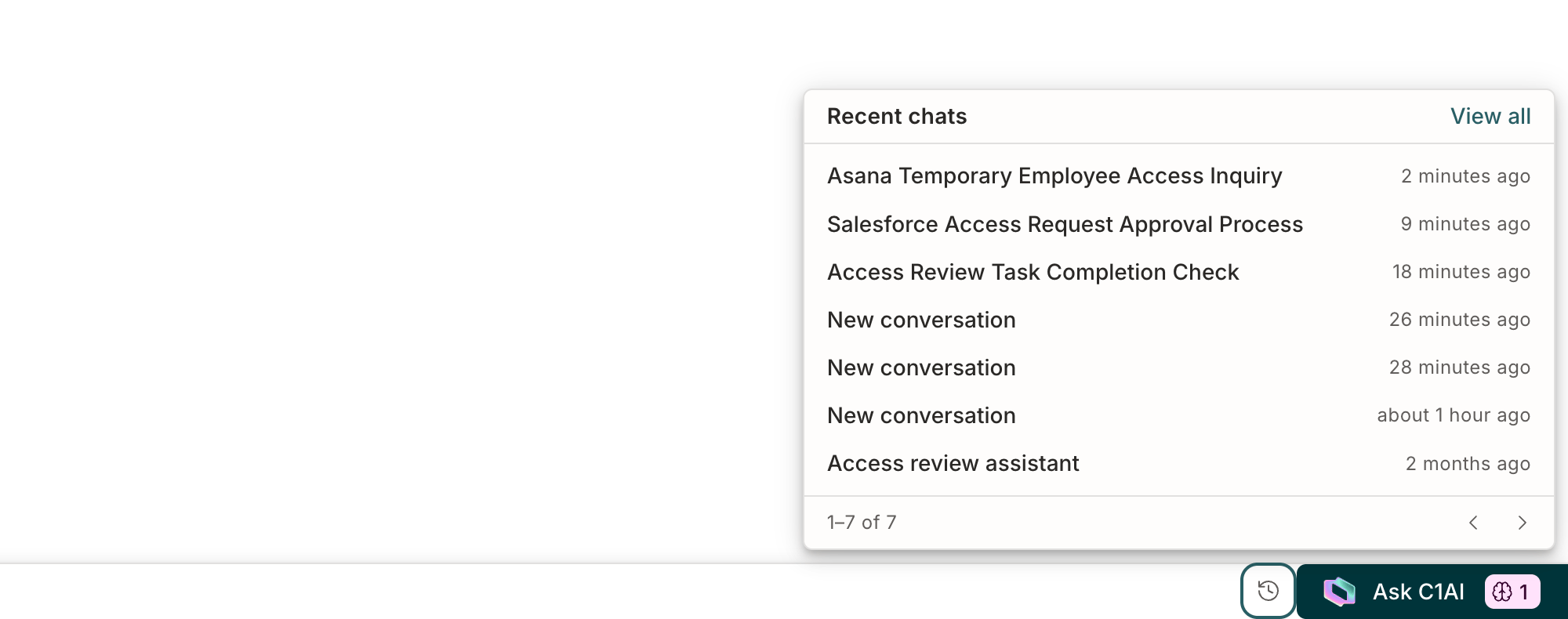
When your C1 tenant is created, C1AI opens automatically with a short onboarding conversation. It asks a few questions about your organization — such as your industry, your organization’s size, and what you’re trying to accomplish first. If you signed up via SSO, C1AI also uses the identity provider it detected during setup to suggest a relevant starting point. Based on your answers, C1AI builds a personalized onboarding plan: a set of categorized next steps. Some steps are agent-assisted, meaning C1AI can carry them out for you directly in the chat panel — for example, connecting an app — rather than you having to navigate to that part of the product yourself. You can leave the onboarding plan and come back to it later — it’s saved as a conversation like any other, so you can reopen it from Recent chats. If you’d rather set up C1 on your own, you can dismiss the plan at any time.Page context
When you open the assistant from a specific page in C1 — an application, a policy, an entitlement, and so on — the assistant pulls in context about that page and its related objects. A chip at the bottom of the chat panel shows what’s in context. Use the toggle next to it to include or exclude that context from the conversation.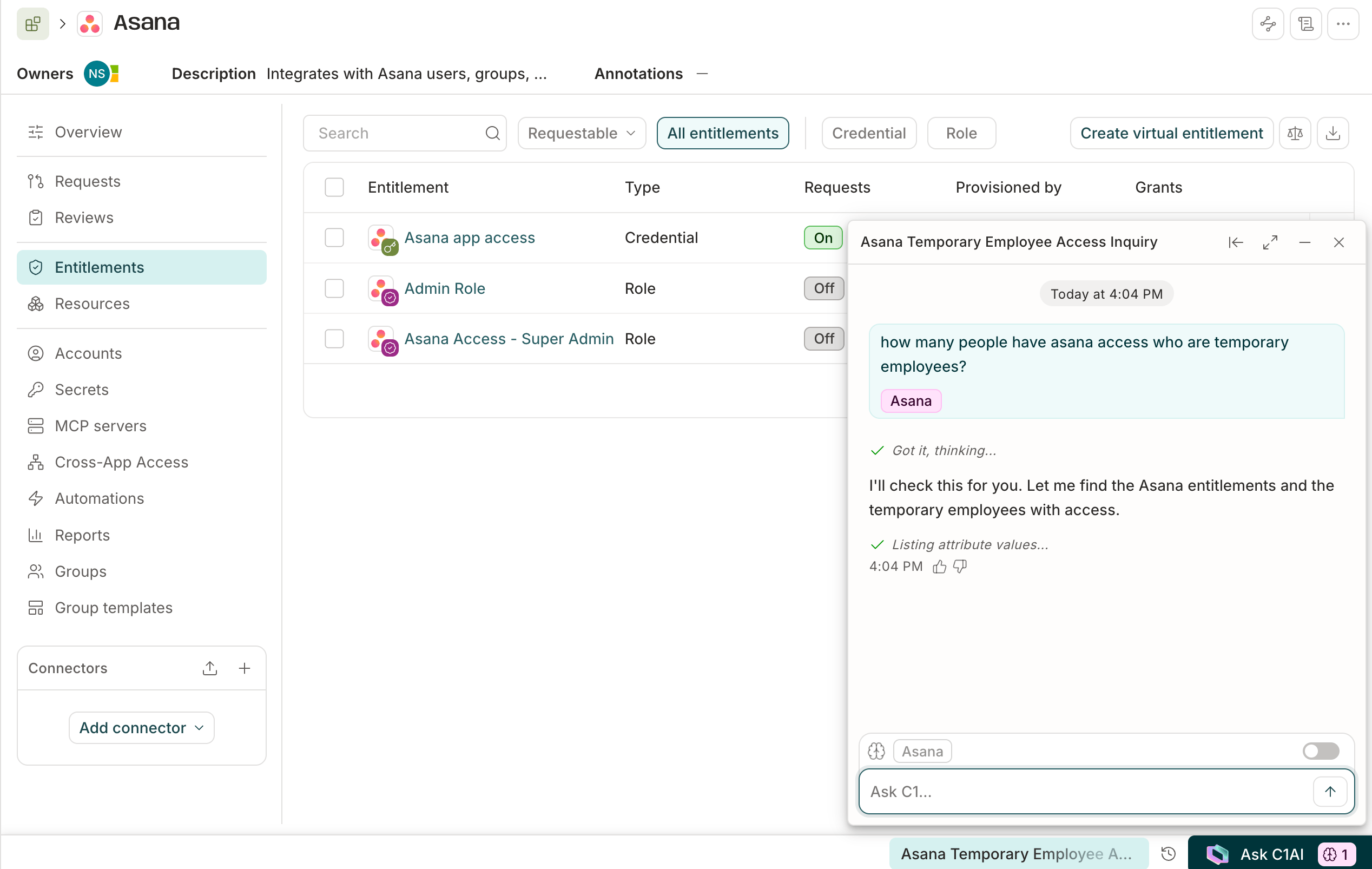
Return to a previous conversation
Click the history icon in the toolbar at the bottom right of the screen to open the Recent chats panel. Click any conversation in the list to reopen it, or click View all to see your full chat history.