

How role mining works
Role mining starts with a cohort: a group of users defined by filters such as department, job title, or manager. C1 then shows the entitlements that cohort holds in common. You set how common an entitlement must be to qualify, review the result, and create a role that grants that access. With membership automation, the role gives its entitlements automatically to users who match the cohort’s filters, such as everyone in a department. For more on roles, see Access profile types. You can begin an analysis in three ways:- Start from a suggestion — C1 finds groups of users who share a lot of access, based on attributes such as department, job title, or manager, and pre-fills the analysis for the group you pick. Use this option if you’re not sure where to start.
- Resume a previous analysis — Return to an analysis you ran earlier.
- Start fresh — Define your own cohort and the apps to analyze.
Before you begin
- You must have the Super Administrator role in C1 to use role mining. Role mining doesn’t appear in the navigation for other roles.
- At least one connector must be configured and have completed a sync. Role mining analyzes existing access grants, so it needs synced data.
- Your directory must include the user attributes you want to filter by, such as department or job title.
Start an analysis
Go to Governance > Role mining to open the Start an analysis panel. Choose one of the three options, then click Start.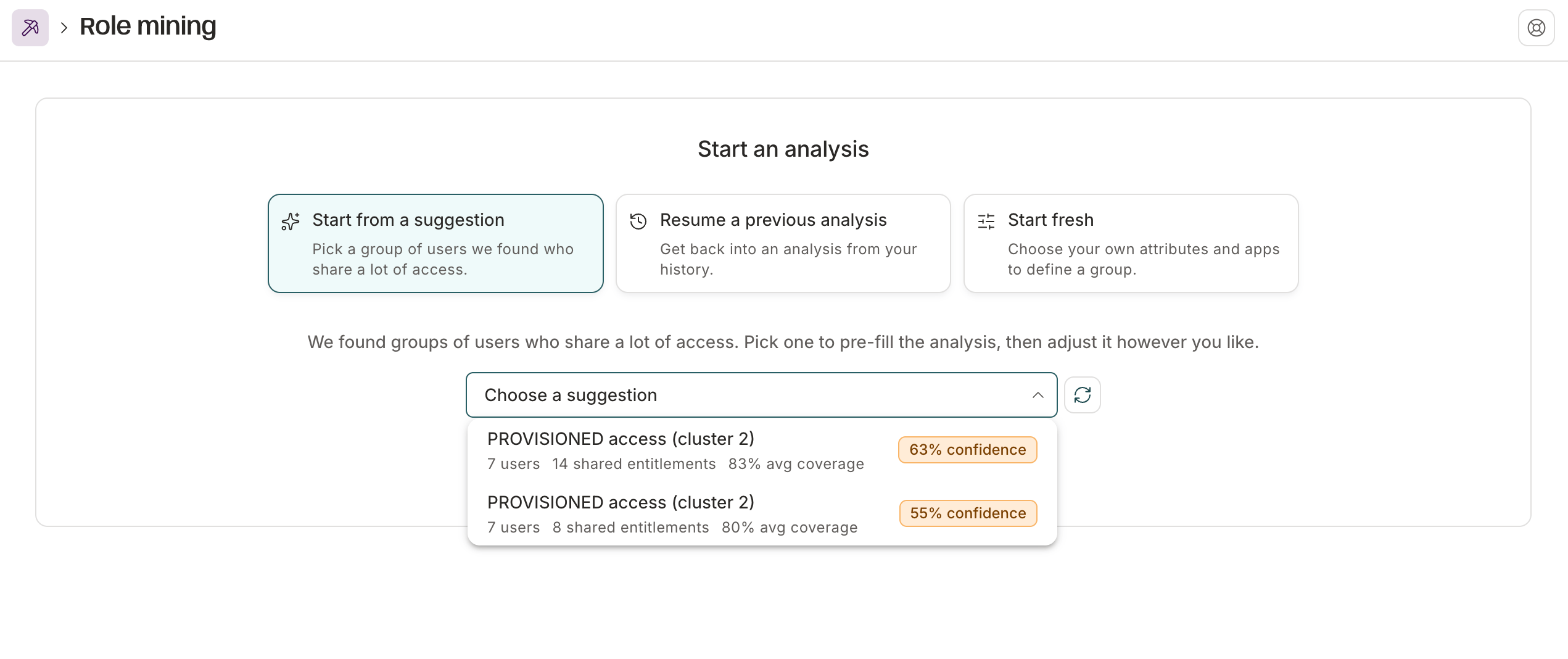
Start from a suggestion
C1 analyzes your organization’s access to find groups of users who share a lot of access, such as users in the same department who hold many of the same entitlements. Each group is a suggestion. When you pick one, C1 opens a new analysis with the filters that define the group already filled in, and you can adjust them from there. Each suggestion in the list shows:- The name of the group.
- The number of users in the group.
- The number of shared entitlements, which are the entitlements the group has in common.
- The average coverage, which is the average share of the group that holds each shared entitlement.
- A confidence badge, which shows how strong a candidate the group is for a role as a percentage. Confidence is higher when the same users tend to hold all of the group’s shared entitlements together and when most of the group holds each one. The badge is green at 80% or higher and yellow from 50% to 79%.
1
Navigate to Governance > Role mining.
2
Click Start from a suggestion.
3
Open the Choose a suggestion list and select a suggestion.
4
Click Start.
Refresh suggestions
To look for new groups, click the refresh icon (Refresh suggestions) next to the Choose a suggestion list. C1 analyzes your organization’s access again, and the list shows Finding suggestions… while the analysis runs. Only one organization-wide analysis runs at a time. If the list is empty, it says No suggestions yet or No suggestions above 50% confidence. Click the refresh icon to run a new analysis.Resume a previous analysis
Use this option to pick up where you left off, whether the analysis finished, failed, or is still running.1
Click Resume a previous analysis.
2
Open the Choose a previous analysis list and select an analysis. Each entry shows the cohort filters, the analysis ID, and a status such as Completed or Failed.
3
Click Start.
Start fresh
Use this option to define the cohort and the apps to analyze yourself, starting from an empty analysis.1
Click Start fresh.
2
Click Start.
Define the cohort
The Cohort pane on the left holds the filters that decide which users are in the analysis. As you add filters, C1 lists the matching users under Members and shows the member count at the top of the pane. A user must match every filter to be in the cohort.Filter by a user attribute
Use a user attribute filter to group users by a directory attribute such as department, job title, or manager.1
In the Define cohort card, click Add filter.
2
Under Filter type, select User attribute.
3
In Attribute, search for and select an attribute. The list includes built-in attributes, such as Department, Job title, and Manager, and custom attributes.
4
Select one or more values. Each value shows how many users hold it and what share of your directory that represents. Users who match any selected value are included.
5
Click Add.
Filter by the access users hold
Use an access filter to find users who hold specific entitlements, such as everyone who has a particular role in an app. In the Add filter drawer, select Access the user has, then select the entitlements to match. Users must hold at least one of the selected entitlements in each access row. You can add up to 20 access rows and select up to 20 entitlements in each.Choose the access to include
The Access pane on the right lists the entitlements the cohort holds. The pane header shows how many entitlements are selected out of the total and how many apps they come from. When your selection includes entitlements with a risk level, the header also shows badges that count them. The high risk badge counts selected entitlements with a Critical or High risk level, and the medium risk badge counts those with a Moderate risk level. The counts update as you change the selection. To set an entitlement’s risk level, see Set entitlement attributes.Limit the analysis to specific apps
By default, C1 considers entitlements from every app. To narrow the list, open Access scope, click Select apps, and choose up to 10 apps. The cohort doesn’t change, and the Entitlements list shows only entitlements from the selected apps.Set the shared-access threshold
The Select shared access card controls how common an entitlement must be in the cohort to be selected. Enter a percentage in the box, or drag the slider, to set the cutoff. The default is 80%. The histogram shows how entitlements are distributed across the cohort, from entitlements everyone holds at 100% to entitlements almost no one holds at 0%. The entitlements at or above your cutoff are selected.Fine-tune the selection
The Entitlements table lists each entitlement with its app and type, the share of the cohort that holds it under % of cohort w/ access, and its number of Grants.- Select or clear the checkbox next to an entitlement to include or exclude it. Use the checkbox in the header to select or clear the whole list.
- Turn on Show selected only to filter the list to your current selection.
- An entitlement shows a Deleted badge if it has been deleted in C1.
Analysis status
C1 runs each analysis in the background. A status strip at the bottom of the page shows its progress, such as Starting analysis… or Analyzing cohort…, and the Entitlements table fills in when the analysis finishes. You can leave the page and return later with Resume a previous analysis. If an analysis fails, click Run again. If a newer analysis replaces the one you’re viewing, click View newer analysis.Create a role
When the cohort and the selected entitlements look right, create a role that grants those entitlements. A role is an access profile of the Role type, so it grants its entitlements automatically to users who meet its membership condition.1
Click Create role in the bar at the bottom of the page.
2
In Name, enter a name of at least three characters.
3
Optional. In Description, enter a description.
4
Optional. Clear Enable membership automation if you don’t want C1 to add members automatically. When it’s selected, C1 generates a membership condition from your cohort filters and adds users who match it. The condition is read-only.
5
Optional. Select Create access request tasks for membership changes to create an access request task for each automatic enrollment instead of enrolling matching users immediately.
6
Review the entitlements the role will include.
7
Click Create role.
A role can include up to 500 entitlements. If more than 500 are selected, C1 asks you to raise the cutoff or remove entitlements before you create the role. If the generated membership condition is too long, C1 asks you to remove filters or turn off membership automation.
Frequently asked questions about role mining
Why don't I see any suggestions?
Why don't I see any suggestions?
C1 lists only suggestions above 50% confidence. A suggestion needs a group of at least five users who share access, and an entitlement counts toward a group only if at least three users hold it. If the list is empty, make sure your connectors have synced and your directory attributes are populated, then click the refresh icon next to the list.
What does confidence mean?
What does confidence mean?
Confidence shows how strong a candidate a group is for a role. It’s higher when the users in the group hold similar access and when each user holds most of the group’s shared access. A higher percentage means the group is more likely to make a well-defined role.
Why does the Entitlements table say there are no items?
Why does the Entitlements table say there are no items?
The table is empty while an analysis runs. It also stays empty if the apps in your access scope have no entitlements the cohort shares at your cutoff. Lower the threshold, widen the access scope, or change the cohort filters.
Why can't I filter by the attribute I need?
Why can't I filter by the attribute I need?
A banner appears on the page when standard directory attributes, such as department, job title, or manager, aren’t mapped. Click Map attributes to map them, then rerun your analysis.
Do roles from role mining update when users change?
Do roles from role mining update when users change?
If you enabled membership automation, C1 keeps the role’s membership in sync with the condition generated from your filters. The role’s entitlements don’t change after you create it. To change them, edit the role on the Access profiles page.