

What are entitlements?
Entitlements are access rights, permissions, or privileges to resources in an application. For example, entitlements can include:- Membership to a group
- Read access to a data table
- Assignment of a role
A special entitlement: Access
Every managed application in C1 comes with a built-in resource and entitlement: the Credential resource and the Access entitlement. The Access entitlement references all accounts in the application, which lets C1 treat account membership like any other entitlement. For example:- If you want to make new accounts requestable in C1, set the corresponding access controls on the Access entitlement.
- If you want to run an access review on anyone who has any account in an application, select the Credential for the application.
Creating entitlements
Entitlements are created automatically when connector or file data is ingested into C1. Connectors identify resources inside the application — roles, groups, and similar objects — and sync them along with their corresponding entitlements to C1. If you need to manually create an entitlement for a resource, you can create a virtual entitlement:1
On the app’s Entitlements tab, click Create virtual entitlement.
2
Select the Resource type, enter a name, and optionally add a description.
3
Click Create.
Requesting access to entitlements created ahead of sync
If you provision groups, roles, or other entitlements using infrastructure as code — for example, Terraform with amatch_baton_id — the entitlement can exist in your source of truth before C1’s next connector sync merges it in. If a user requests access to one of these entitlements before that merge completes, the task now waits instead of failing.
The task’s status shows Waiting, and its details include a callout explaining that it’s waiting on the connector sync. Once the entitlement merges, the task resumes automatically and provisioning continues. If the merge doesn’t complete within 24 hours, the task falls back to manual provisioning.
This behavior isn’t on by default. Contact the C1 Support team to enable it for your tenant.
Customize columns and export to CSV
Use Configure columns in the Entitlements table header to adjust which columns are visible — toggle columns on or off and drag to reorder. Your layout is saved automatically. The table includes an Owners column showing the users responsible for each entitlement. To export entitlements data to CSV, click Generate CSV above the Entitlements table. The Download as CSV drawer opens where you can choose which columns to include before generating the file.Managing entitlements
To manage an entitlement, navigate to the application, click the Entitlements tab, and click on the entitlement to open its detail page. From there, you can:Rename the entitlement
In C1, entitlements are displayed next to their resource as a short label called a slug. The slug describes the access right or permission the entitlement grants.Entitlement slugs are set automatically by connectors, but you can edit most of them. The exception is the credential resource, which has a single Access entitlement that cannot be renamed.
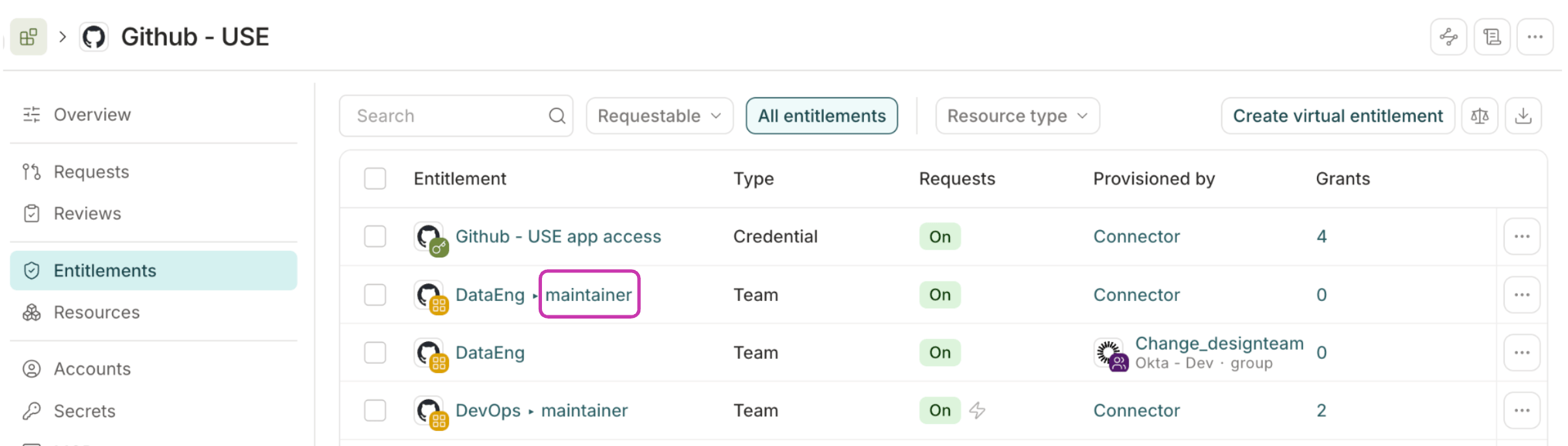
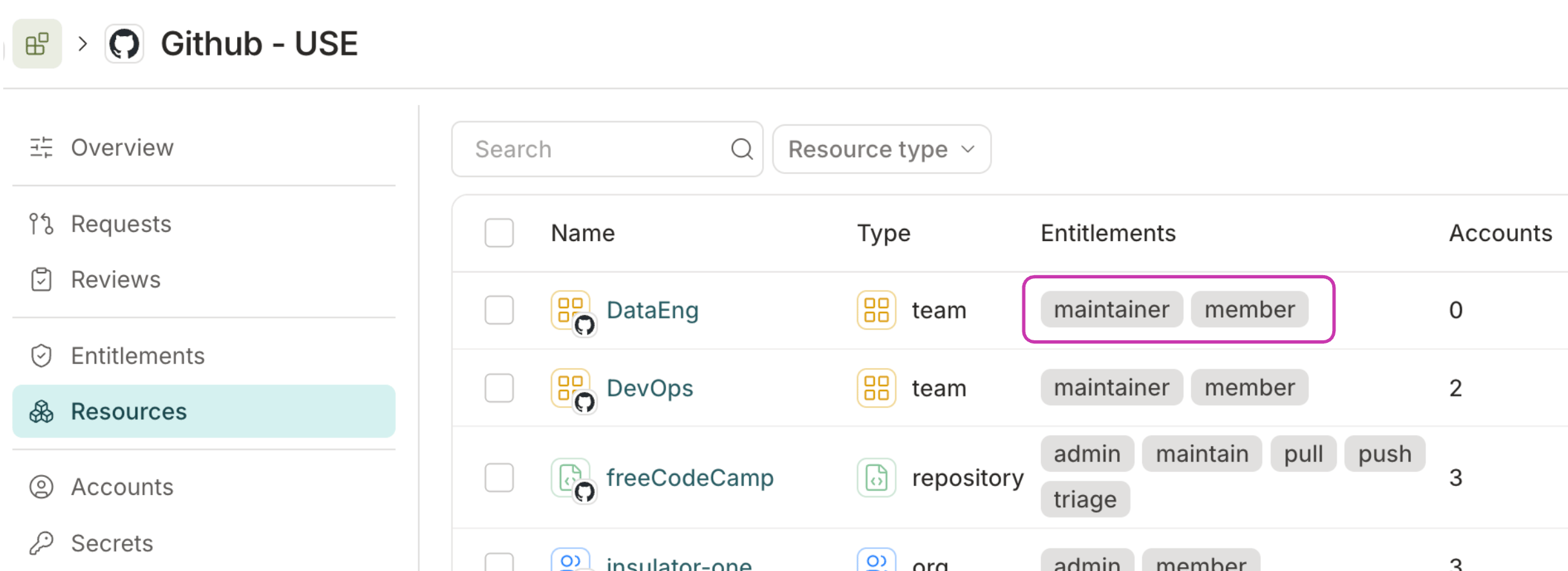
1
Navigate to the entitlement’s Details tab and click Edit.
2
Edit the Slug field to change the entitlement’s slug.
3
Click Save.
Manage entitlement owners
Entitlement owners can be the target of policy approval steps — for example, you can require an entitlement owner to approve access requests for sensitive data or roles. You can assign entitlement owners in two ways:- By user: Add specific C1 users as direct owners.
- By entitlement: Add any entitlement from a connected app. All users currently assigned that entitlement automatically become owners, and ownership updates as users are granted or removed from the entitlement.
1
On the entitlement’s Details page, click the pencil icon next to Owner.
2
In the Select owners window, use the Users tab to add or remove user owners, or the Entitlements tab to search for and add entitlement owners.You can mix and match user and entitlement owners as needed.
3
Click Save.
Add annotations to the entitlement
At the top of the entitlement’s Details page you’ll find an Annotations field, where you can attach custom key/value metadata to the app — useful for tracking cost centers, compliance scope, or IaC management state. Learn more about annotations.Set entitlement attributes
You can create custom risk levels and compliance framework tags, and apply these tags to entitlements. You can then sort and select entitlements for access reviews and access profiles by compliance framework or risk level. To create attributes:1
Navigate to Settings > Tags.
2
Click Edit on the Attribute values section of the page.
3
In either the Compliance framework or Risk level field, type the name of the value you wish to add and press Enter.
4
Repeat the process, adding additional attribute values as needed. Click the x next to any value to remove it from the list.
5
When you’re finished, click Save and confirm your action.
1
Click Edit in the attributes box
2
Select the correct risk level for the entitlement, or select None.
3
If applicable, select any compliance frameworks that apply to the entitlement.
4
Click Save.
Set an entitlement alias
Aliases are shortcuts you can add to entitlements. They let you reference an entitlement by a short, memorable name — for example, when using the C1 CLI tool to request access. For example, in the commandcone get aws-prod, aws-prod is the alias mapped to a production AWS role.
To set an alias on an entitlement:
1
Click Edit in the attributes box
2
Locate the Alias field and enter your chosen alias for the entitlement.
3
Click Save.
View and manage entitlement grants
Grants are a list of who currently is granted an entitlement on a resource. To see the grants for the entitlement, click Grants. Grants can be managed directly from this page. You can revoke a specific grant by clicking Revoke. You can also change, extend, or even remove a grant’s expiration date on this page. Select a grant or multiple grants by clicking the checkbox on the left, then select Set expiration or Remove expiration from the bulk actions menu.Entitlement visibility
Entitlement visibility is inherited from the resource the entitlement belongs to. When a resource’s visibility is restricted, all entitlements on that resource are also restricted in the same way. For example, if a resource’s visibility is set to Members, only users who have been granted an entitlement on that resource (along with the resource’s owners, entitlement owners, the app’s owners, and Super Admins) can see the resource and any of its entitlements. Users who don’t meet the visibility criteria will not see the entitlements in search results or other areas of the C1 interface. To change the visibility of an entitlement, update the visibility setting on its parent resource.Deleting entitlements
To delete an entitlement:1
On the entitlement’s detail page, click … in the top right corner and select Delete.
2
In the confirmation dialog, confirm that you want to delete the entitlement.