> ## Documentation Index
> Fetch the complete documentation index at: https://www.c1.ai/docs/llms.txt
> Use this file to discover all available pages before exploring further.
# How to request actions
> Request on-demand actions like device provisioning, resource creation, or operational workflows through C1's Actions catalog.
## What are actions?
Actions are on-demand workflows that you can request through C1. Unlike regular access requests, they're designed for operations that go beyond normal access requests, such as:
* Requesting a new laptop or other device
* Creating or modifying resources (for example, AD groups, GitHub repos)
* Executing operational workflows (for example, timecard punch-ins)
* Running just-in-time privileged tasks
Each action is governed by an approval policy and may require you to fill out a form with specific details about your request.
## Where can I find actions?
You can find and request actions in three places:
1. **Actions catalog**: Navigate to **Requests** > **Actions** to see all the actions available to you.
2. **New request form**: Click **+ New request** and select the **Actions** tab.
3. **AI assistant**: Ask the C1 AI assistant in the C1 app for Slack what actions are available to you.
You'll only see actions that you have permission to request. If you don't see an action you need, contact your IT administrator.
## Request an action
Navigate to **Browse** > **Actions** or click **+ New request** and select the **Actions** tab.
Browse or search for the action you need and click on it.
Fill out the request form. The form will ask for specific information needed to complete the action. Provide all required details.
Review your request details and click **Submit request**.
A drawer pops open to show you the details of the newly created action task.
**Done.** Your action request is submitted and will be routed for approval if required. You can always refer to this task later on the **My requests** list on the **Requests** page.
## Request an action from the AI assistant
If your company uses Slack and an admin has set up the C1 app for Slack, you can discover and request actions directly from the C1 AI assistant, without navigating to the Actions catalog.
Open the C1 app for Slack and go to the **Chat** tab, or type `@C1` in any channel where the app is installed.
Ask the assistant what actions are available to you. It will return a list of the actions you have permission to request.
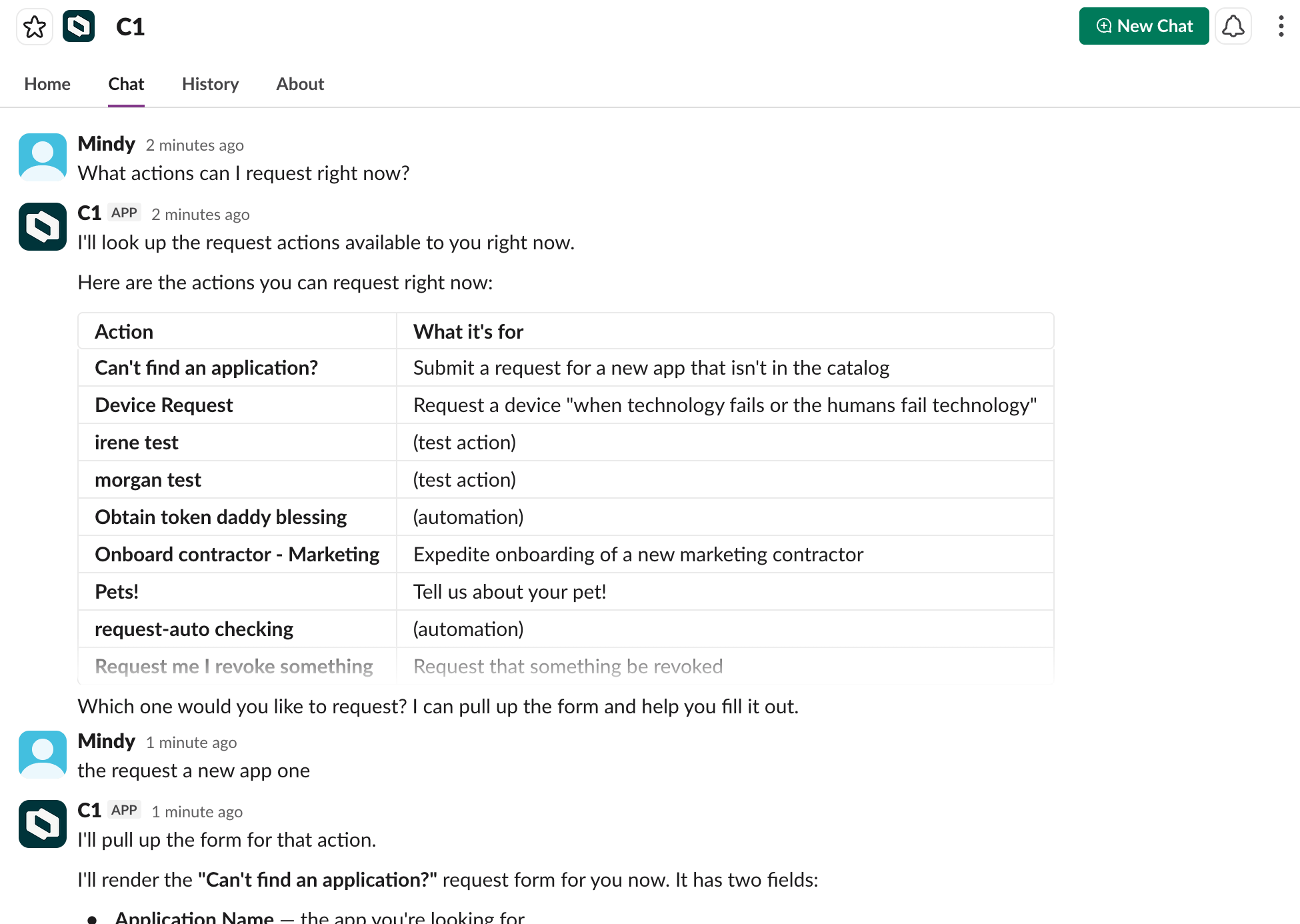 Tell the assistant which action you'd like to request. It will pull up the form for that action.
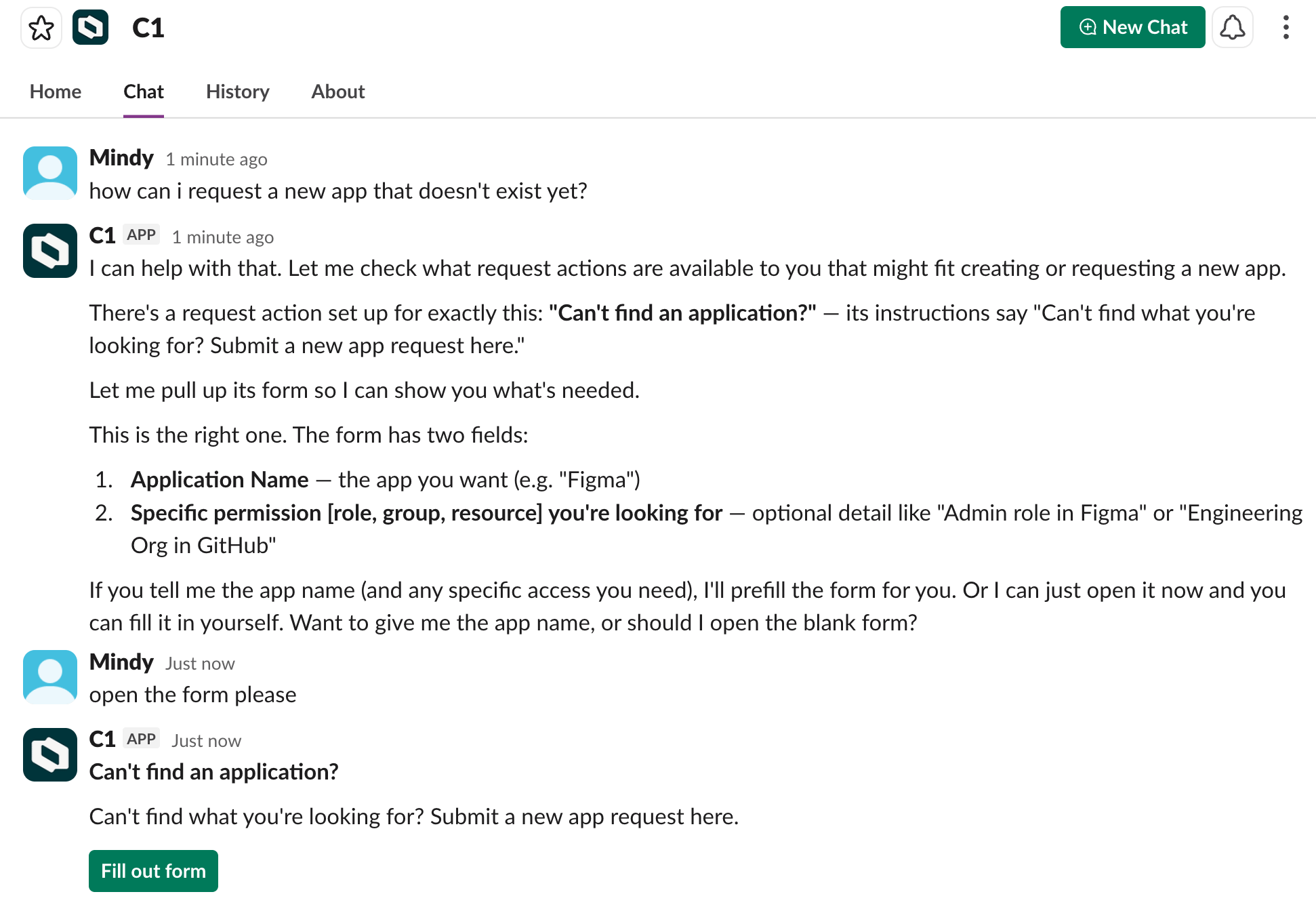 Click **Fill out form**, complete the required fields, and submit. The assistant never submits on your behalf — every submission is a deliberate click on your part.
Your request is then routed through the same approval process as any other action request.
## What happens after I submit?
After you submit an action request:
1. **Approval (if required)**: If the action requires approval, it will be routed to the appropriate approvers (for example, your manager, IT lead, or the app owner). You'll receive a notification when your request is approved or denied.
2. **Execution**: Once approved (or if auto-approved), the action runs automatically. C1 executes the workflow steps using the information you provided in the form.
3. **Completion**: You'll receive a notification when the action is completed. You can view the full history of your request, including all approvals and execution details, on the **My requests** page.
## Can I request actions for others?
Most users can only request actions for themselves, but there are a few exceptions:
* **Managers** can request actions for the members of their team.
* C1 users with the **Access Request Helpdesk**, **Access Request Admin**, or **Super Administrator** roles can request actions for any active user.
If you're a manager or have one of these user roles, you'll see an option to request actions for others when creating an action request.
**Do I have to approve the action I request for another user?**
If you request an action for another person, your approval of that action is understood to be implicit. So if the policy governing the action would normally assign a task to you for your approval, C1 will auto-approve the request on your behalf.
Click **Fill out form**, complete the required fields, and submit. The assistant never submits on your behalf — every submission is a deliberate click on your part.
Your request is then routed through the same approval process as any other action request.
## What happens after I submit?
After you submit an action request:
1. **Approval (if required)**: If the action requires approval, it will be routed to the appropriate approvers (for example, your manager, IT lead, or the app owner). You'll receive a notification when your request is approved or denied.
2. **Execution**: Once approved (or if auto-approved), the action runs automatically. C1 executes the workflow steps using the information you provided in the form.
3. **Completion**: You'll receive a notification when the action is completed. You can view the full history of your request, including all approvals and execution details, on the **My requests** page.
## Can I request actions for others?
Most users can only request actions for themselves, but there are a few exceptions:
* **Managers** can request actions for the members of their team.
* C1 users with the **Access Request Helpdesk**, **Access Request Admin**, or **Super Administrator** roles can request actions for any active user.
If you're a manager or have one of these user roles, you'll see an option to request actions for others when creating an action request.
**Do I have to approve the action I request for another user?**
If you request an action for another person, your approval of that action is understood to be implicit. So if the policy governing the action would normally assign a task to you for your approval, C1 will auto-approve the request on your behalf.