> ## Documentation Index
> Fetch the complete documentation index at: https://www.c1.ai/docs/llms.txt
> Use this file to discover all available pages before exploring further.
# Gain visibility into your access data
> The Inventory page provides a unified view of identities, resources, and sensitive secrets.
{/* to look up secret types, search for TRAIT_SECRET in the Baton GitHub org */}
## View all resources, identities, and select secrets
The **Inventory** page gives you a single-pane-of-glass view of all the identities and resources synced to C1, as well as insight into key sensitive credentials generated in select integrations. Use the sort and filter tools on each tab to quickly zero in on the info you need.
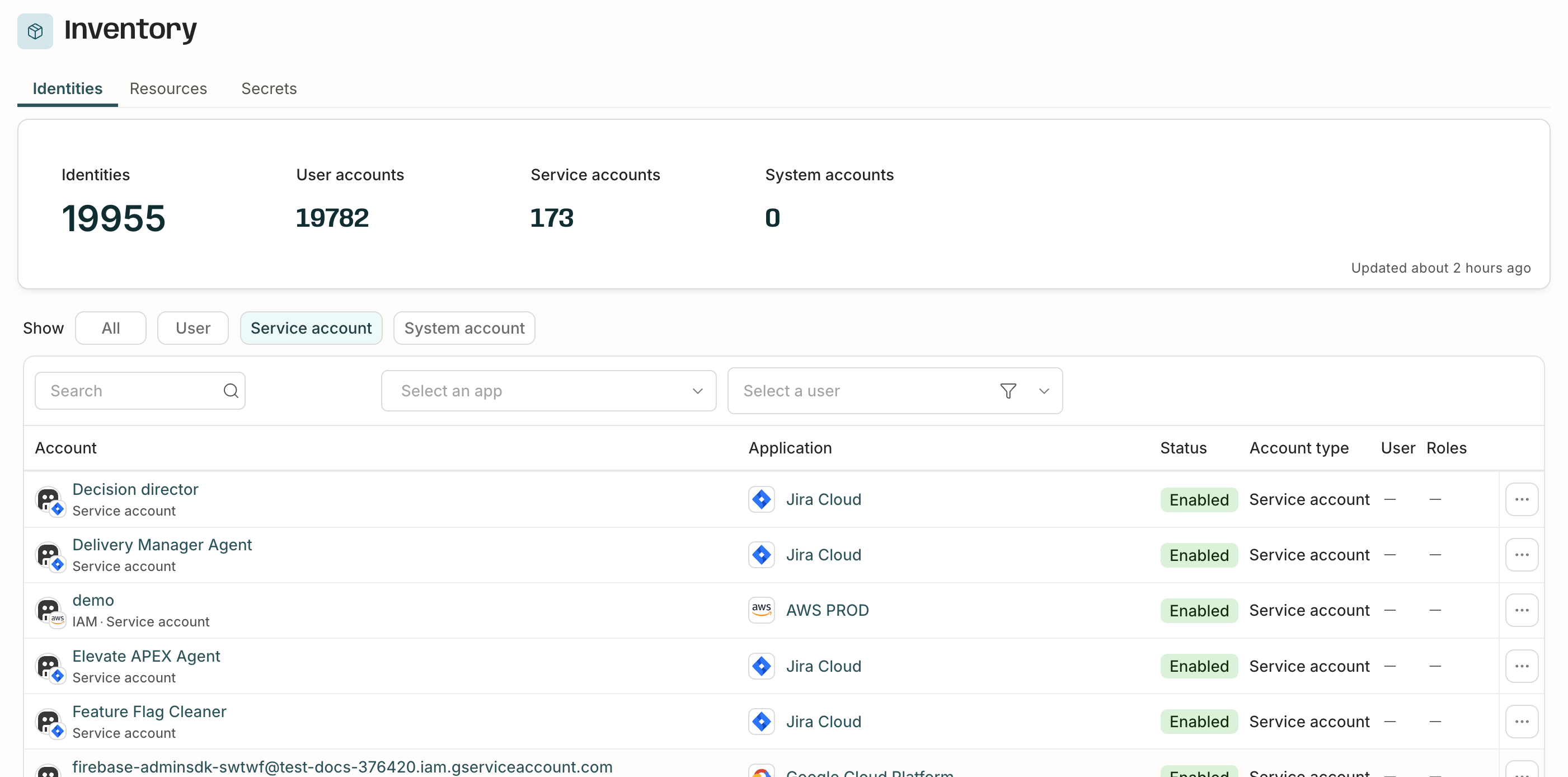 * The **Identities** tab shows all identities, including user, service, and system accounts.
* The **Resources** tab shows all resources with their associated entitlements and the number of accounts granted access to each resource
* The **Secrets** tab shows secrets from the following connectors (if the connectors are configured to sync secrets):
| Connector | Secrets synced |
| :------------------------------------------ | :----------------------------- |
| AWS | Access keys |
| Datadog | API keys |
| GitHub | API keys |
| Google Cloud Platform with Google Workspace | API keys, service account keys |
| Okta | API tokens |
| Oracle Cloud Infrastructure | API keys |
| Rootly | Secrets |
| Snowflake | RSA public keys |
**More secret types and providers coming soon!**
We're working to expand the range of secret types and the list of supported integrations that pull in secrets data. We'll announce updates in the [release notes](/product/release-notes) and add them to this page.
## Configure your integrations to pull in secrets data
Before you begin, make sure you've configured your integration to sync secret data.
(No special configuration action is needed to sync secrets from Rootly.)
### Configure Okta, GitHub, AWS, Snowflake, or Datadog to sync secrets
If your Okta v2, GitHub v2, AWS v2, Snowflake v2, or Datadog v2 connector is already set up, follow the instructions below to enable syncing secrets:
Navigate to **Integrations** > **Connectors** and locate your connector in the list.
In the **Settings** area of the connector setup page, click **Edit**.
Click the checkbox to **Sync secrets**, then click **Save**.
**Done.** The next time the connector syncs, it will begin publishing information about secrets on the **Secrets** tab. You can wait for the connector's next scheduled sync, or navigate to the connector's page in C1 and click **Sync now**.
### Configure Google Cloud Platform to sync secrets
If your Google Cloud Platform with Google Workspace connector is already set up, follow the instructions below to enable syncing secrets:
In the C1 project in Google Cloud Platform, search for "API keys" and enable it.
Next, grant the API Keys Viewer Role to the service account you created for C1. Navigate to **IAM & Admin** > **IAM**.
On the IAM page, find your Service Account in the list on the Principals tab.
Click the icon to edit the Service Account, then click **Add another role**.
Search for and select **API Keys Viewer**.
Click **Save**.
**Done.** The next time the Google Cloud Platform connector syncs, it will begin publishing information about API tokens and service account keys on the **Secrets** tab. You can wait for the connector's next scheduled sync, or navigate to the connector's page in C1 and click **Sync now**.
## Track unused secrets
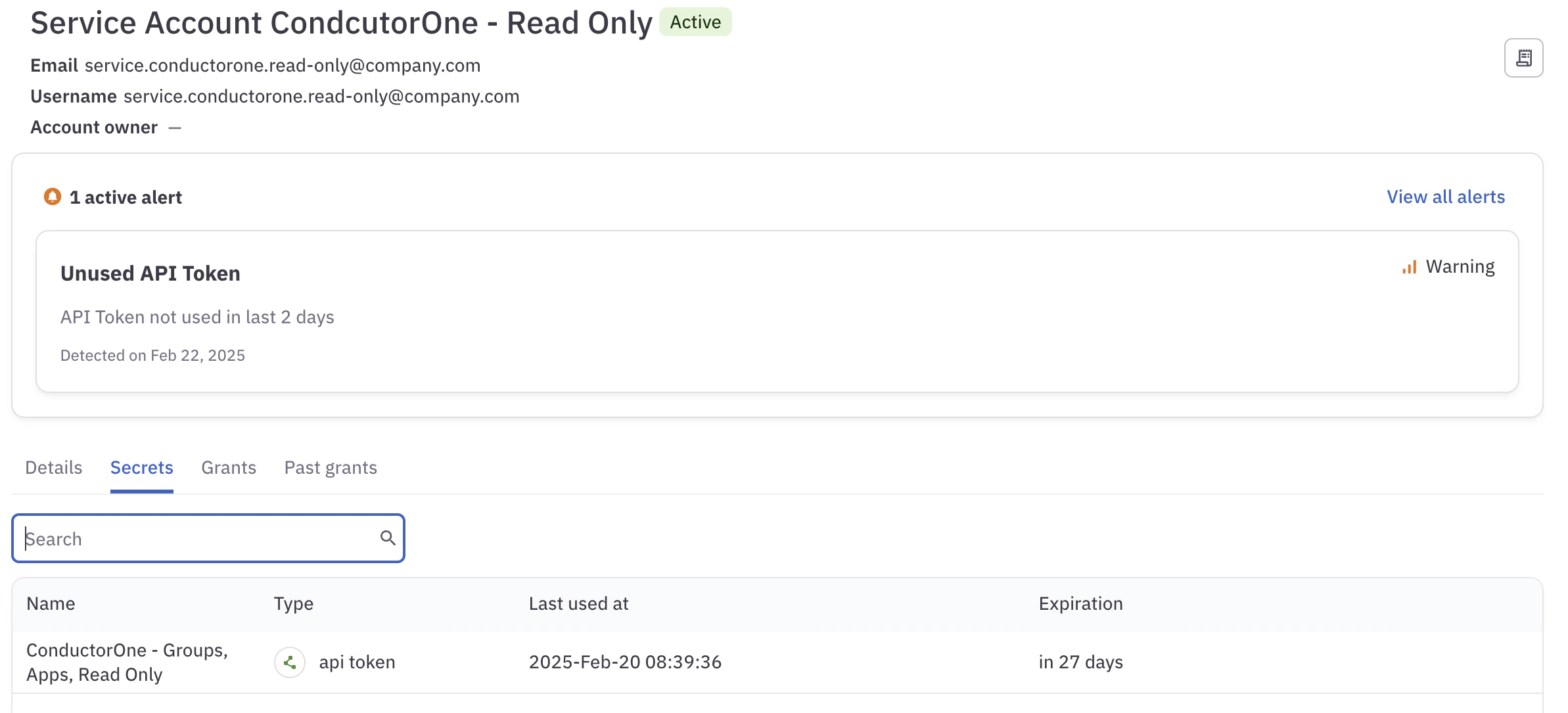
The **Secrets** tab shows the expiration and last used date of each API token and service account key. To view the details of an unused secret:
Navigate to **Identity security** > **Inventory**.
Click **Secrets**.
Locate the API token or service account key you wish to investigate and click the associated name in the **Identity** column.
The identity's details page opens. All secrets associated with the identity are shown on the **Secrets** tab. Any active alerts about unused tokens or keys are shown at the top of the page. Click **View all alerts** to learn more.
* The **Identities** tab shows all identities, including user, service, and system accounts.
* The **Resources** tab shows all resources with their associated entitlements and the number of accounts granted access to each resource
* The **Secrets** tab shows secrets from the following connectors (if the connectors are configured to sync secrets):
| Connector | Secrets synced |
| :------------------------------------------ | :----------------------------- |
| AWS | Access keys |
| Datadog | API keys |
| GitHub | API keys |
| Google Cloud Platform with Google Workspace | API keys, service account keys |
| Okta | API tokens |
| Oracle Cloud Infrastructure | API keys |
| Rootly | Secrets |
| Snowflake | RSA public keys |
**More secret types and providers coming soon!**
We're working to expand the range of secret types and the list of supported integrations that pull in secrets data. We'll announce updates in the [release notes](/product/release-notes) and add them to this page.
## Configure your integrations to pull in secrets data
Before you begin, make sure you've configured your integration to sync secret data.
(No special configuration action is needed to sync secrets from Rootly.)
### Configure Okta, GitHub, AWS, Snowflake, or Datadog to sync secrets
If your Okta v2, GitHub v2, AWS v2, Snowflake v2, or Datadog v2 connector is already set up, follow the instructions below to enable syncing secrets:
Navigate to **Integrations** > **Connectors** and locate your connector in the list.
In the **Settings** area of the connector setup page, click **Edit**.
Click the checkbox to **Sync secrets**, then click **Save**.
**Done.** The next time the connector syncs, it will begin publishing information about secrets on the **Secrets** tab. You can wait for the connector's next scheduled sync, or navigate to the connector's page in C1 and click **Sync now**.
### Configure Google Cloud Platform to sync secrets
If your Google Cloud Platform with Google Workspace connector is already set up, follow the instructions below to enable syncing secrets:
In the C1 project in Google Cloud Platform, search for "API keys" and enable it.
Next, grant the API Keys Viewer Role to the service account you created for C1. Navigate to **IAM & Admin** > **IAM**.
On the IAM page, find your Service Account in the list on the Principals tab.
Click the icon to edit the Service Account, then click **Add another role**.
Search for and select **API Keys Viewer**.
Click **Save**.
**Done.** The next time the Google Cloud Platform connector syncs, it will begin publishing information about API tokens and service account keys on the **Secrets** tab. You can wait for the connector's next scheduled sync, or navigate to the connector's page in C1 and click **Sync now**.
## Track unused secrets
The **Secrets** tab shows the expiration and last used date of each API token and service account key. To view the details of an unused secret:
Navigate to **Identity security** > **Inventory**.
Click **Secrets**.
Locate the API token or service account key you wish to investigate and click the associated name in the **Identity** column.
The identity's details page opens. All secrets associated with the identity are shown on the **Secrets** tab. Any active alerts about unused tokens or keys are shown at the top of the page. Click **View all alerts** to learn more.