> ## Documentation Index
> Fetch the complete documentation index at: https://www.c1.ai/docs/llms.txt
> Use this file to discover all available pages before exploring further.
# Use the C1 AI assistant
> Ask questions about your org's access data and take action directly from anywhere in C1.
The C1 AI assistant is available to all C1 users directly in the product. Ask C1AI questions or tell it what you want to do, and it responds in the same language you write in.
## Open the assistant
Click **Ask C1AI** in the bottom-right corner of any page in C1.
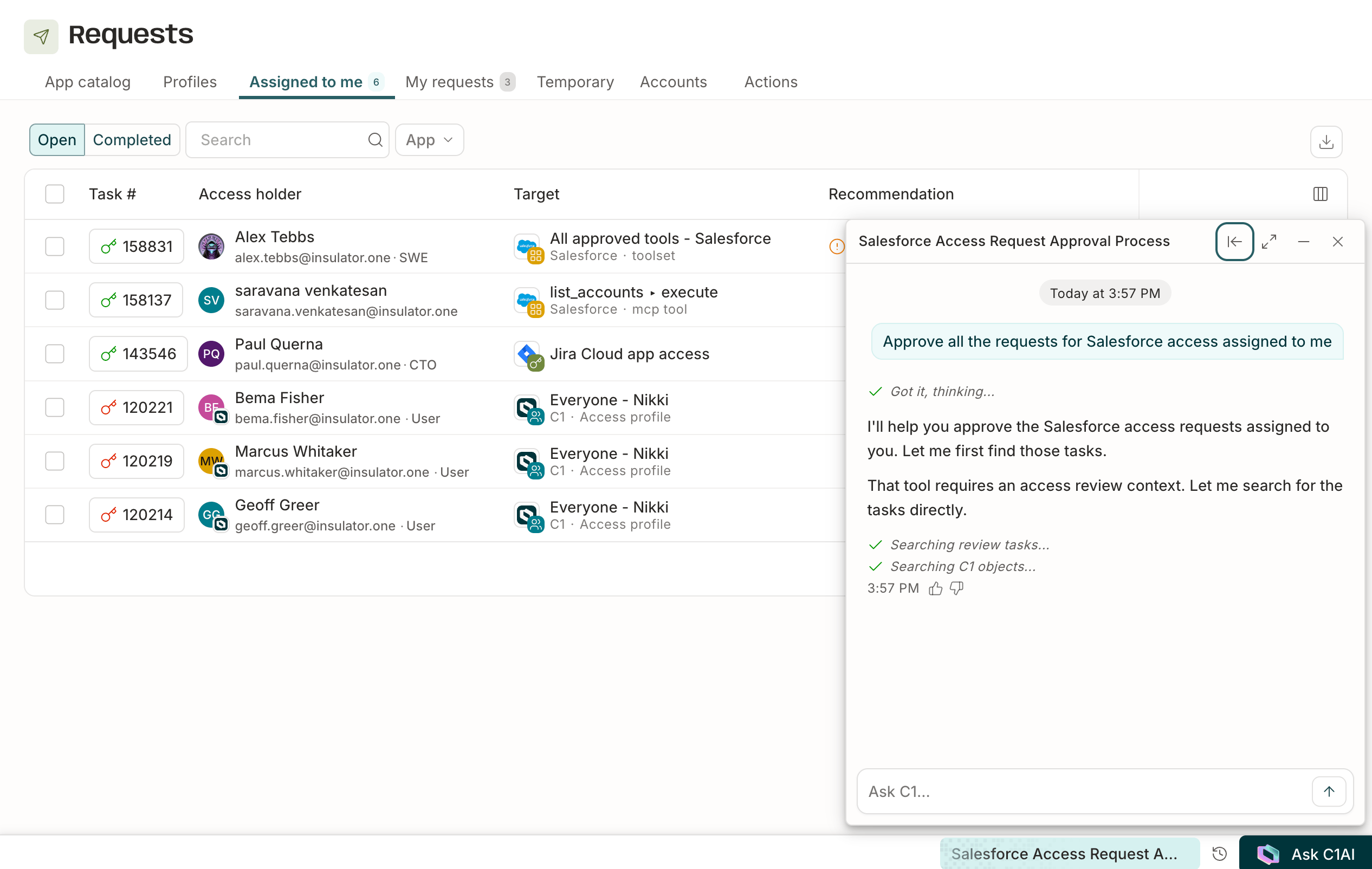 The chat panel opens as a floating window. Use the controls in the panel's title bar to expand it, move it, or close it.
## Ask questions and take action
Type any question or request in the **Ask C1...** field and press **Enter**.
Ask it anything about your org's access data: who has access to what, how your organization is structured, what's in your entitlement catalog, and more. Because the assistant has access to the same C1 data your role permits you to see — including IdP-sourced information about your org — it can reason across that data to answer questions that might otherwise require navigating multiple views.
You can also ask for data in a specific format — for example, "give me a CSV of everyone with admin access" — and the assistant generates a downloadable file (CSV, JSON, PDF, or plain text) with the link appearing directly in the chat.
The assistant can also take action on what it finds. On your explicit approval, it can:
* Approve, deny, reassign, or escalate access requests
* Manage access and entitlements
* Configure campaigns and conflict monitors
* Build policies
The assistant always asks for your go-ahead before making any change. It can only act on what your C1 role permits — a user without policy management permissions, for example, won't be able to use the assistant to edit policies.
The assistant maintains context within a conversation, so you can start broad and follow up to narrow results. To start a fresh session, click **Ask C1AI** again.
## Page context
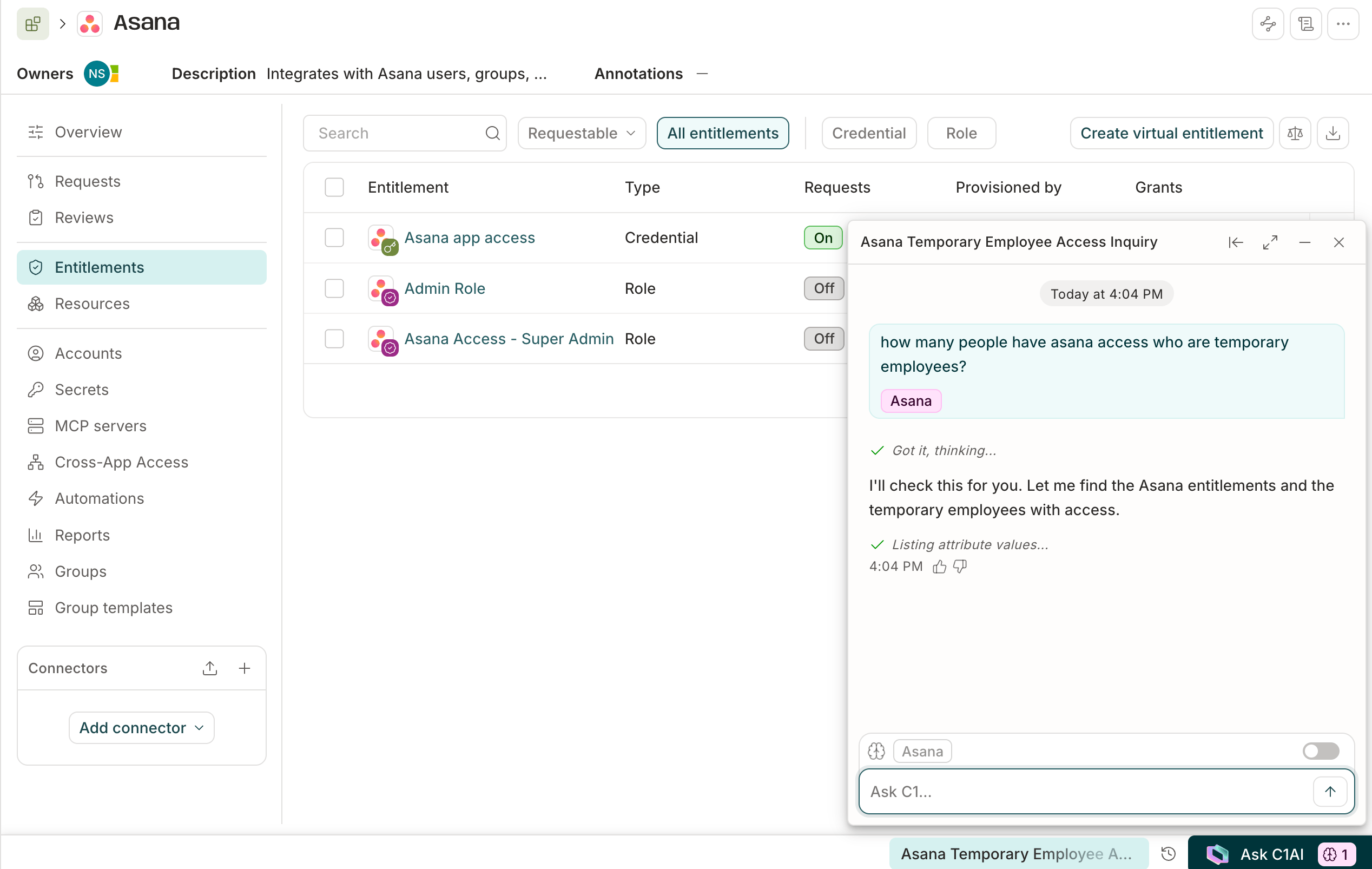
When you open the assistant from a specific page in C1 — an application, a policy, an entitlement, and so on — the assistant pulls in context about that page and its related objects. A chip at the bottom of the chat panel shows what's in context. Use the toggle next to it to include or exclude that context from the conversation.
The chat panel opens as a floating window. Use the controls in the panel's title bar to expand it, move it, or close it.
## Ask questions and take action
Type any question or request in the **Ask C1...** field and press **Enter**.
Ask it anything about your org's access data: who has access to what, how your organization is structured, what's in your entitlement catalog, and more. Because the assistant has access to the same C1 data your role permits you to see — including IdP-sourced information about your org — it can reason across that data to answer questions that might otherwise require navigating multiple views.
You can also ask for data in a specific format — for example, "give me a CSV of everyone with admin access" — and the assistant generates a downloadable file (CSV, JSON, PDF, or plain text) with the link appearing directly in the chat.
The assistant can also take action on what it finds. On your explicit approval, it can:
* Approve, deny, reassign, or escalate access requests
* Manage access and entitlements
* Configure campaigns and conflict monitors
* Build policies
The assistant always asks for your go-ahead before making any change. It can only act on what your C1 role permits — a user without policy management permissions, for example, won't be able to use the assistant to edit policies.
The assistant maintains context within a conversation, so you can start broad and follow up to narrow results. To start a fresh session, click **Ask C1AI** again.
## Page context
When you open the assistant from a specific page in C1 — an application, a policy, an entitlement, and so on — the assistant pulls in context about that page and its related objects. A chip at the bottom of the chat panel shows what's in context. Use the toggle next to it to include or exclude that context from the conversation.
 ## Return to a previous conversation
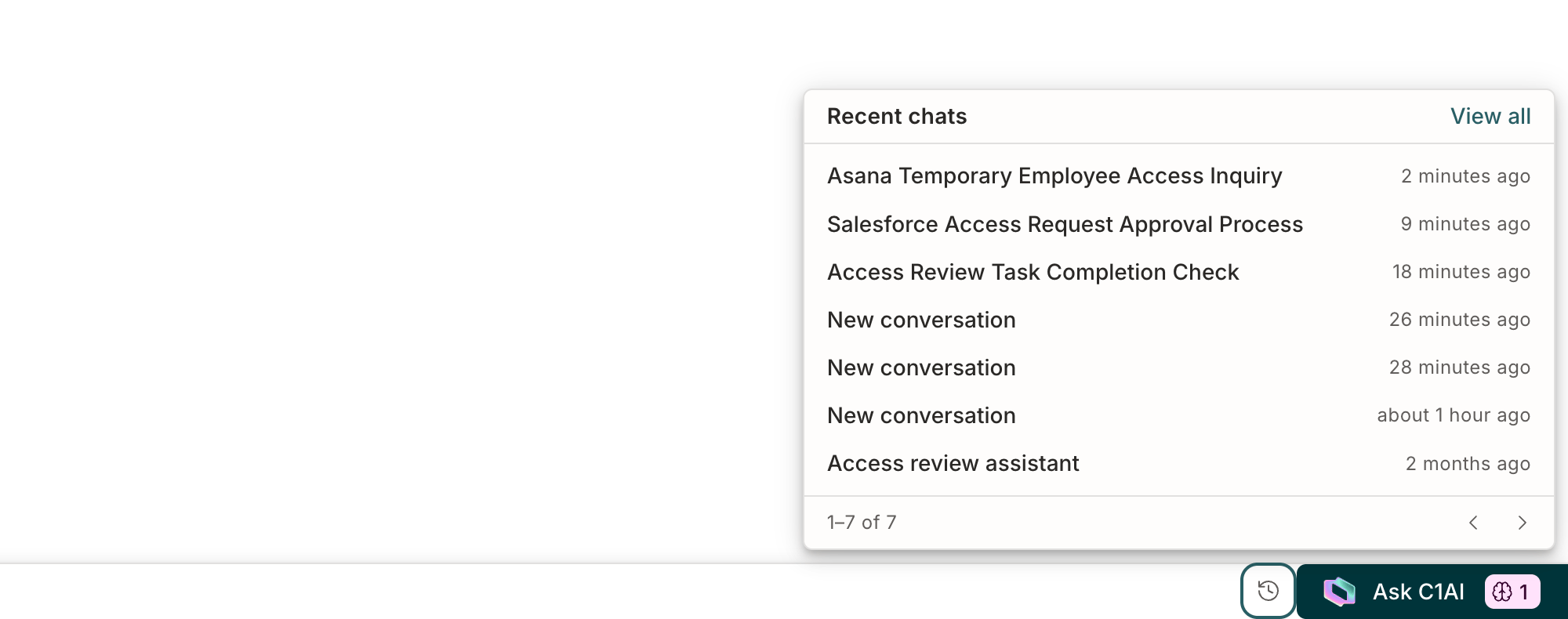
Click the history icon in the toolbar at the bottom right of the screen to open the **Recent chats** panel. Click any conversation in the list to reopen it, or click **View all** to see your full chat history.
## Return to a previous conversation
Click the history icon in the toolbar at the bottom right of the screen to open the **Recent chats** panel. Click any conversation in the list to reopen it, or click **View all** to see your full chat history.