> ## Documentation Index
> Fetch the complete documentation index at: https://www.c1.ai/docs/llms.txt
> Use this file to discover all available pages before exploring further.
# Detect access conflicts
> Set up conflict monitors to automatically track and alert on combinations of access that violate policies or regulations.
## What's an access conflict?
An access conflict is when two entitlements assigned to the same user violate a separation of duties (SoD) policy or other regulation. Ensuring SoD is enforced across your organization is an important part of adhering to standards such as SOX, FDA 21 CFR Part 11, and ISO 27001.
Set up an access conflict monitor by defining groups of mutually exclusive access. C1 automatically identifies existing and new access conflicts so you can take action. Each conflict monitor also creates detailed audit logs and downloadable reports so you can prove your SoD compliance to auditors and certifiers.
## Create a new conflict monitor
This task requires the **Super Administrator** role in C1.
Follow the steps below to create a conflict monitor. You can set up multiple conflict monitors to adhere to the various regulations and policies your organization must follow.
### Set up the conflict monitor
Navigate to **Governance** > **Access conflicts**.
Click **New conflict monitor**.
Give the new conflict monitor a name and add a description.
Click **Submit**. The new conflict monitor is created for you.
### Choose conflicting access to monitor
In this step you'll create two groups of entitlements. Users who have access to any entitlements in Group A cannot have access to any entitlements in Group B, and vice versa.
If a user is granted any entitlement in Group A and any entitlement in Group B, this triggers an alert. A separate alert is triggered for each conflict, so a single user might be the subject of multiple alerts.
On the **Settings** tab, go to the **Conflicting access** section and click **Edit** in the **Group A** row.
Use the search and filter tools to add entitlements to Group A. You can select up to 32 entitlements for each group. When you're done, click **Save**.
Repeat the process to add entitlements to Group B.
Remember, the conflict monitor will create an alert whenever a user with *any* entitlement in Group A is assigned *any* entitlement in Group B, or vice versa.
Edit and refine your selections as necessary. No alerts will be triggered until you enable the conflict monitor.
### Optional: Set up notifications
In the **Settings** area of the page, click **Edit** and go to the **Notifications** area.
If you want C1 to send an email when new alerts are generated by the conflict monitor:
* Click to turn on **Direct message**.
* Select one or more C1 users to receive notifications by email when new alerts are generated by your conflict monitor.
If you want C1 to send Slack notifications when new alerts are generated by the conflict monitor:
* Click to turn on **Slack**. You'll see an error with instructions if the C1 app for Slack isn't set up for your organization.
* Type the name of the channel where you want to receive notifications when new alerts are generated by your conflict monitor. If you enter the name of a channel that does not yet exist, the C1 app for Slack will create it for you.
Click **Save**.
### Enable the conflict monitor
When you're finished configuring the conflict monitor, click **Enable** at the top of the page.
Click **Alerts** to see the list of any conflicts immediately detected by the new conflict monitor.
As additional conflicts are detected by the monitor, they will be added here, and an orange dot will appear in the sidebars next to **Governance** and **Access conflicts**to alert you that new conflicts have been detected.
## Manage alerts
When your conflict monitor alerts you that conflicting access is assigned to a user, you have three choices for how to proceed:
* **Resolve the conflict:** Revoke access to one of the entitlements to resolve the conflict. When one of the conflicting entitlements is no longer assigned to the user, the alert's status changes to **Resolved**.
* **Exempt the conflict:** Click **Exempt** and provide a reason why you are allowing a particular user to retain a potentially risky combination of access. The alert's status then changes to **Exempted**.
* **Do nothing:** If you take no action, the alert's status remains **Active** until you either exempt or resolve the conflict.
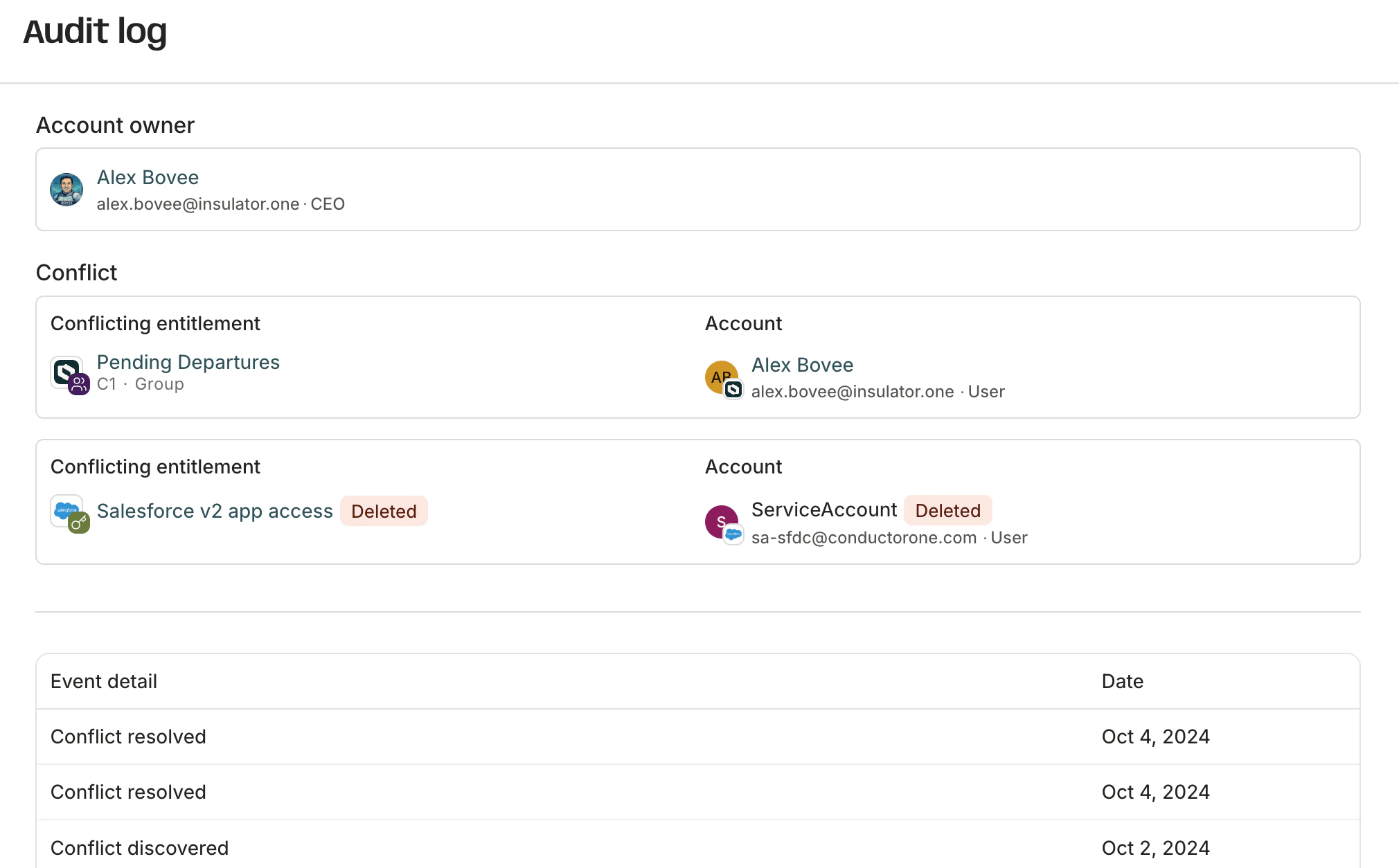
To learn more about a conflict and see its log of past actions, click **View audit log** at the end of the row.
 ## Review access conflicts in a campaign
You can use your conflict monitors to scope an [access review campaign](/product/admin/campaigns). When you create a campaign and select the **Access conflicts** review type, C1 generates review tasks for users who have active violations detected by your conflict monitors. This lets you systematically review and remediate separation of duties violations across your organization.
To set up an access conflict campaign, see [Create an access review campaign](/product/admin/campaigns#step-2-choose-what-to-review).
## Generate reports
Generate a report of the conflict monitor's alerts, their current state, and all audit log entries by clicking the **Generate CSV** icon. Your report will be prepared for you and posted in the downloads center at the top of the page when ready.
## Review access conflicts in a campaign
You can use your conflict monitors to scope an [access review campaign](/product/admin/campaigns). When you create a campaign and select the **Access conflicts** review type, C1 generates review tasks for users who have active violations detected by your conflict monitors. This lets you systematically review and remediate separation of duties violations across your organization.
To set up an access conflict campaign, see [Create an access review campaign](/product/admin/campaigns#step-2-choose-what-to-review).
## Generate reports
Generate a report of the conflict monitor's alerts, their current state, and all audit log entries by clicking the **Generate CSV** icon. Your report will be prepared for you and posted in the downloads center at the top of the page when ready.
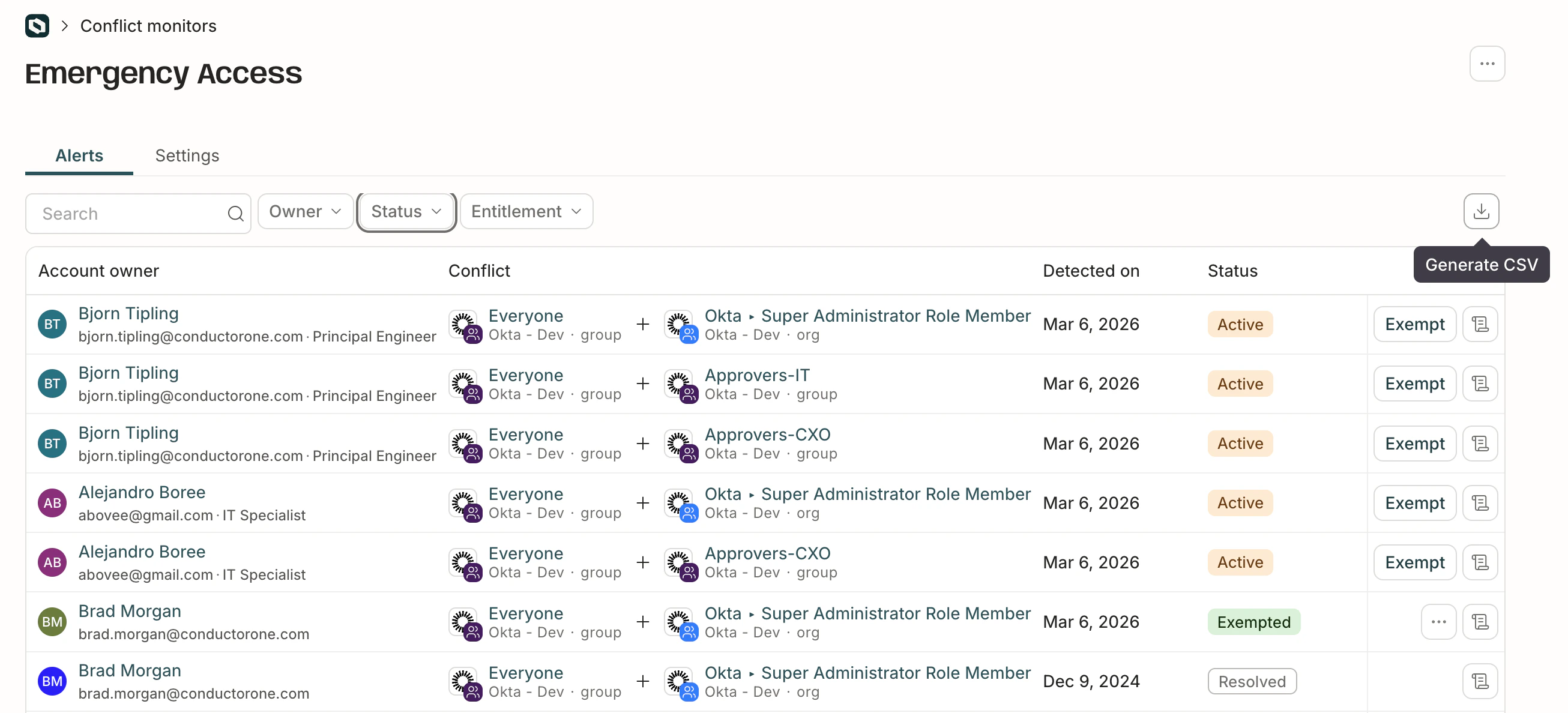 If you use the search and filter tools to limit what's shown on the page, clicking **Generate CSV** will create a report of only the filtered list of alerts.
## Frequently asked questions about access conflicts
By default, the conflict monitor syncs data once an hour. If you need to run a sync on demand, click the ***...*** (more actions) menu in the upper right corner of the page and select **Sync now**.
Yes. The **Insights** section on review and request tasks includes information about any relevant conflict monitors. If existing access has triggered an alert, this is shown on review tasks. If the requested access would trigger an alert if granted, this is shown on request tasks.
If you use the search and filter tools to limit what's shown on the page, clicking **Generate CSV** will create a report of only the filtered list of alerts.
## Frequently asked questions about access conflicts
By default, the conflict monitor syncs data once an hour. If you need to run a sync on demand, click the ***...*** (more actions) menu in the upper right corner of the page and select **Sync now**.
Yes. The **Insights** section on review and request tasks includes information about any relevant conflict monitors. If existing access has triggered an alert, this is shown on review tasks. If the requested access would trigger an alert if granted, this is shown on request tasks.